



- New


- Works with any Android tablet or phone running Android 8 or higher
- Device must be reset to factory settings (no app)
- Works only via Wi-Fi
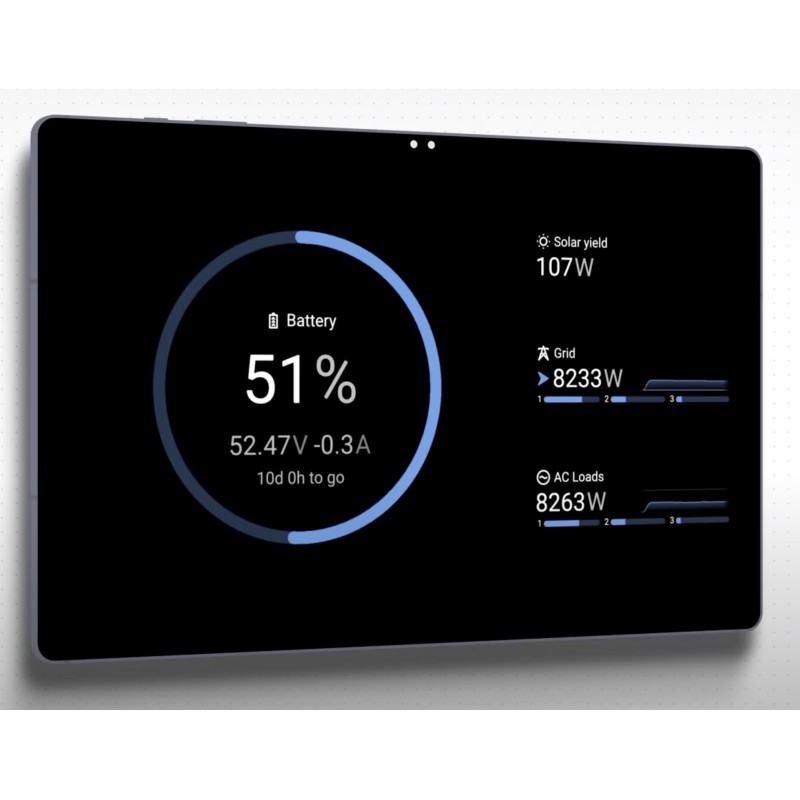
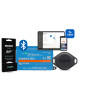
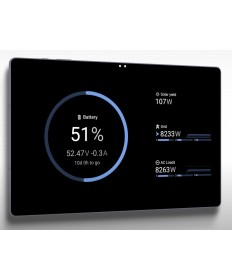
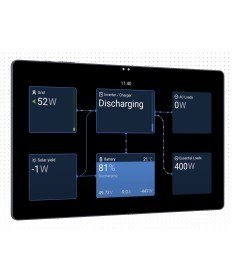
With the Victron GX Wi-Fi Display for Android, a compatible Android tablet or smartphone becomes a Dedicated control and display unit for a Victron GX system. The mobile device connects to the local GX device via Wi-Fi and displays a user interface that is largely similar to that of a GX Touch or Ekrano GX.
This solution is particularly useful when a Cerbo GX or another GX device is used without a built-in display, when an additional display point is needed, or when it is not possible to run a display cable. Multiple Android devices can also be connected to a GX device at the same time and display different pages independently.
The Android GX Wi-Fi Display is ideal for any situation where a Victron GX system needs to be monitored and operated locally, but a hard-wired display is impractical or additional display points are desired.
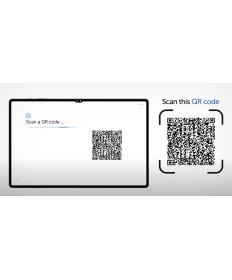
To set it up, you'll need a smartphone or tablet with Android 8 or later required. The Victron GX unit must be connected to Venus OS 3.50 or later be used. During installation, the Android device needs Internet access so that the software can be downloaded and set up.
Once set up, the display can connect to a shared local Wi-Fi network or directly to the GX device's built-in Wi-Fi access point. If the GX device does not appear in the automatic device list, it can be added manually using its IP address.
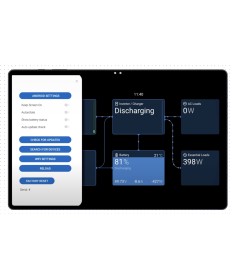
You can set a PIN for the service menu. It prevents changes to the Android device's settings, but does not protect against changes to the settings of the connected GX device.
| Product Type | Software-based GX display in Android kiosk mode |
| Android version | Android 8 or later |
| GX Firmware | Venus OS 3.50 or later |
| Connection | Wi-Fi on the local network or a direct GX Wi-Fi access point |
| Internet connection | Required only for download and installation |
| Operating Mode | Dedicated Display in Kiosk Mode |
| Multiple Displays | Multiple Android devices can be connected to a single GX device |
| Power Supply | Required at all times for a display that remains on |
The Android Victron GX Wi-Fi Display is a flexible solution for local monitoring and control of a GX system. It allows a compatible Android device to function as a primary or secondary display, eliminates the need for a separate display cable, and enables multiple independent display points. Before setup, you must take into account the required factory reset, the exclusive kiosk mode, and the power supply for continuous operation.
The device must have at least Android 8 and support the required setup method. Victron does not specify any specific brands or models. If the standard MDM setup is not supported, the manufacturer's manual describes an alternative installation method using APK.
No. In the Kiosk Mode The Android device functions exclusively as a GX display. Regular apps, email, and the web browser are not available. Only a factory reset will restore the device to its normal state.
An Internet connection is required for the download and installation. Afterward, the Android GX Wi-Fi Display can be used on a local Wi-Fi network without an Internet connection or directly connected to the GX device's Wi-Fi access point.
Yes. The Android device can be used as an additional display alongside a GX Touch or the built-in display of an Ekrano GX. Multiple displays operate independently and can show different pages.
To set it up, you need a Reset to Factory Settings required. This will delete all locally stored data. Therefore, be sure to back up your photos, files, and login information before beginning the installation.
First, check whether the Android device and the GX device are accessible on the same network. If the GX device is on a different subnet or does not appear automatically, you can add it manually in the setup wizard using its IP address.

- Works with any Android tablet or phone running Android 8 or higher
- Device must be reset to factory settings (no app)
- Works only via Wi-Fi